
ESMUDisplay Control Module
Product details and the guidance you need to deploy, maintain, and support your system.
Discuss your project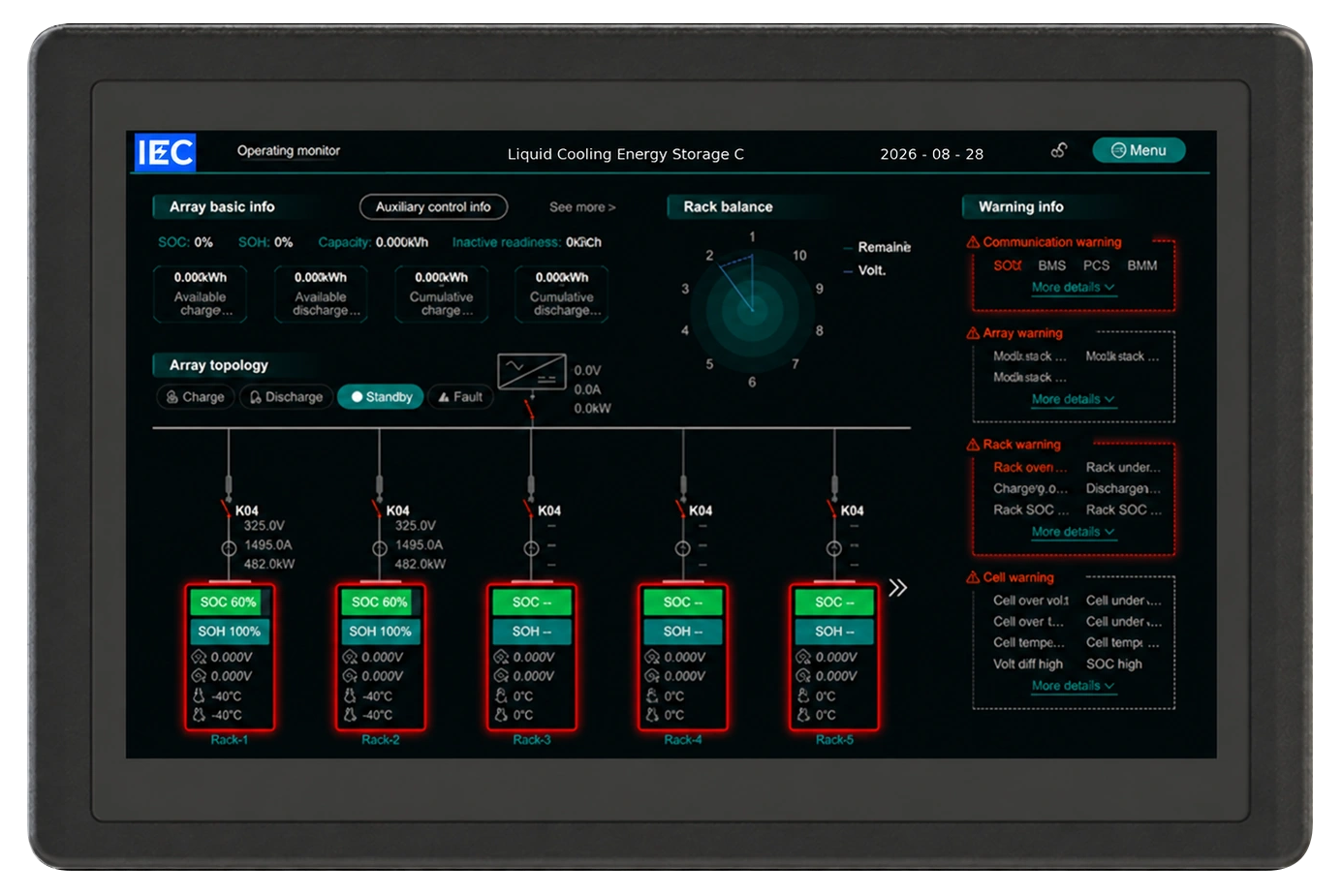
Firmware updates
Security update notifications
- Updates are prioritized according to vulnerability risk, affected scope, and deployment environment.
- Where necessary, IEC will provide affected customers with risk information, temporary mitigations, corrected versions, and upgrade recommendations.
- Public notices are published in Security Advisories
Firmware Update Procedure
For detailed instructions on how to perform firmware updates, please refer to the Firmware Update Procedure.
Version: 1.0
Effective Date: August 18, 2026
Overview
Firmware updates provide security improvements, bug fixes, and feature enhancements. IEC recommends that customers keep products updated to the latest approved firmware version.
Firmware updates should be performed only by authorized service personnel or trained maintenance personnel.
Prerequisites
Before starting the firmware update:
- Obtain the approved firmware package from IEC.
- Use a USB flash drive formatted as FAT32.
- Ensure the USB drive contains only the firmware package required for the update.
- Verify that the firmware package matches the product model and software version.
- Ensure a stable power supply is available throughout the update process.
- Do not remove power during the update.
Update Procedure
Step 1 – Prepare the USB Drive
- Format the USB flash drive as FAT32.
- Copy the firmware update package to the root directory of the USB drive.
- Safely eject the USB drive from the computer.
Step 2 – Start the Update
- Insert the USB drive into the designated USB service port.
- Restart the device according to the service instructions.
- The system will automatically detect the update package and begin the update process.
Step 3 – Complete the Update
- Wait until the update process is finished.
- Follow any on-screen instructions.
- Remove the USB drive when prompted.
- The system may restart automatically after the update is completed.
Verification
After the device restarts:
- Log in to the system.
- Navigate to System Information.
- Confirm that the firmware version matches the intended release version.
- Verify that the system operates normally.
Important Notes
- Do not remove the USB drive while the update is in progress.
- Do not power off the device during the update.
- Use only firmware packages provided or approved by IEC.
- Unauthorized firmware may affect system functionality and security.
Troubleshooting
Update Does Not Start
Possible causes:
- Firmware package not copied correctly.
- USB drive format is not supported.
- Incorrect USB port used.
Update Package Error
Possible causes:
- Missing firmware package.
- Multiple firmware packages present on the USB drive.
- Incorrect package file name.
Update Repeatedly Restarts
Possible causes:
- USB flash drive compatibility issue.
- Corrupted firmware package.
Try using a different USB drive and repeat the procedure. If the issue persists, contact IEC technical support.
Technical Support
For firmware updates, upgrade assistance, or troubleshooting, please contact:
IEC Technical Support
security@iec-bms.com